Need to combine several PDFs into one file? Learn how to merge two or ten documents directly in your browser, change their order and check the result.
A contract and its appendix, an application and supporting documents, a month's invoices or a thesis divided into chapters can all be turned into a single PDF that is easier to send, archive and upload to a form.
You do not need to install anything. This guide shows you how to merge PDFs directly in your browser, set the order of files and pages, and what to watch for with forms and password-protected documents. All processing takes place on your device and the files are not sent to a server.
How to merge PDF files in your browser
Open Merge PDF and follow four steps.
- Choose your files. Click Choose PDFs and select several files at once. You can also add them in batches or drag them into the marked area. The tool shows the size and page count of each file.
- Set the order. The result will contain all pages from the first file, followed by the pages from the second and so on. Until you start the merge, you can move files up and down with the arrow buttons.
- Press Merge PDF. The pages and their fonts are copied into a new document.
- Check and download the result. The tool reopens the finished document, counts its pages and compares their dimensions and text with the source files. Only then does it offer the download. It builds the filename from the first file, so contract.pdf becomes contract-merged.pdf.
The tool does not impose a fixed maximum number of files, so you can merge two or fifty. How many your browser can process at once depends on their size and content and on the memory available on your device.
Free tool, right in your browser
Merge PDF
Choose your PDF files, put them in order and download one document. Everything happens in your browser, and nothing is uploaded.
How to merge two PDFs into one
With two files, remember one rule: the document higher in the list comes first in the result. If you selected them in the wrong order, one click on an arrow swaps them.
There is a dedicated Merge Two PDFs page for this job. Its workflow is tailored to two documents and immediately shows which one will come first. If you later decide to add a third file, you can do so with the same button.
What is and is not transferred when PDFs are merged
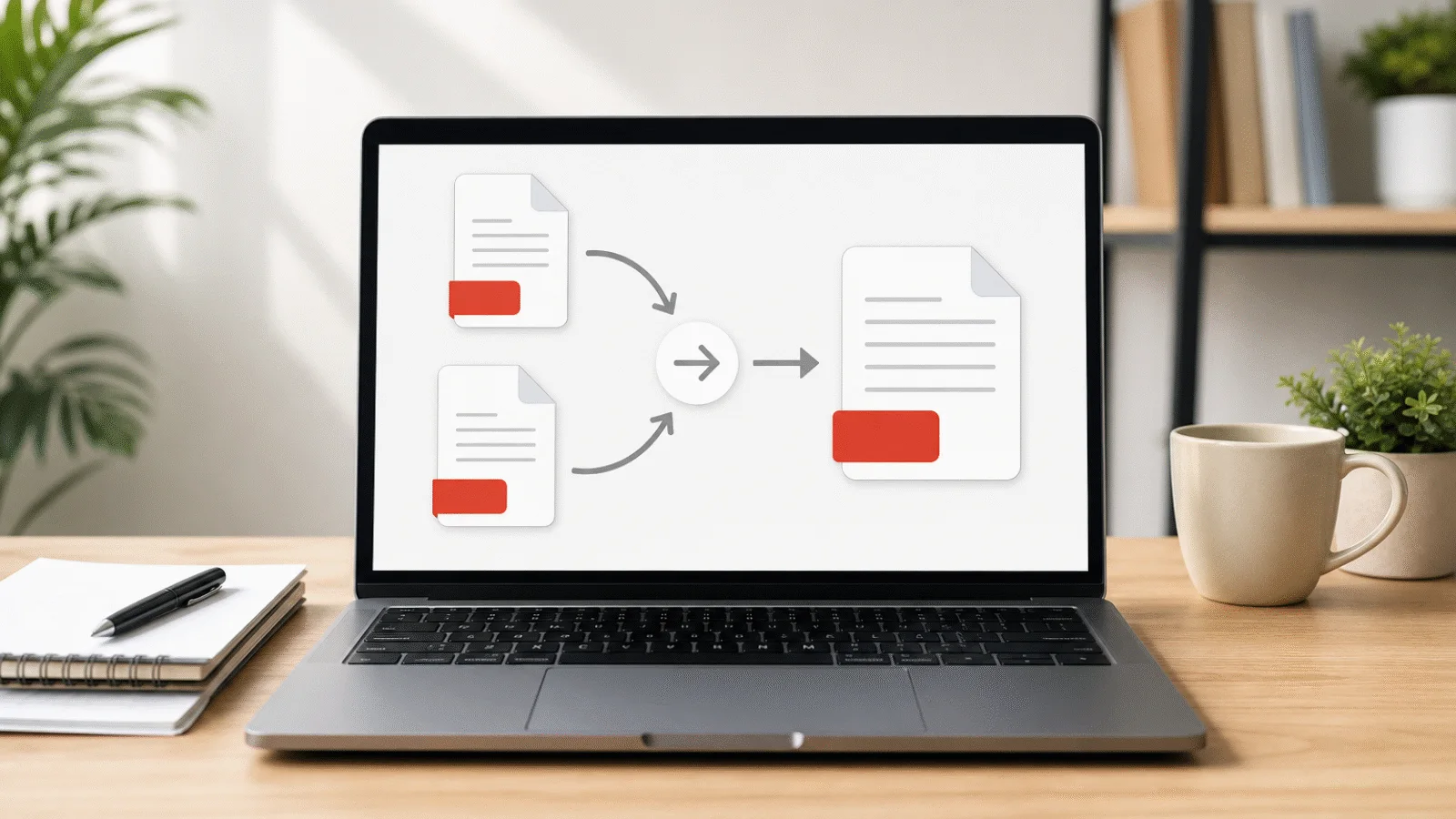
The new document receives all page content, including text, images, vector graphics and fonts. Every page retains its original dimensions and rotation.
Features that belong to the document as a whole rather than to individual pages are not transferred:
- Bookmarks. The merged file no longer contains the document outline shown in a reader's sidebar.
- Form fields and digital signatures. Completed form values will usually remain visible, but the fields themselves will no longer work. Some forms leave their appearance for the PDF reader to generate. In that case the values may disappear altogether, so always open and inspect the merged result.
- Custom page labels. Roman numerals in an introduction or other labels displayed beside thumbnails are replaced with the ordinary page sequence. Page numbers printed directly in the page content remain.
- Files embedded in the PDF and named link destinations. Neither the attachment list nor named destinations are transferred, so links that use them stop working. A file attached to a particular page as an annotation may remain on that page.
You do not have to look for these four types of feature manually. If a source contains one, a warning appears beside its name: "Contains: ... These features will not be transferred when merging." You can then decide before starting whether to merge the document or send it separately.
Ordinary document information such as its title, author, keywords or the program that created it is not transferred either. Those fields are blank in the merged file's properties. To remove the same details from a document without merging it, use Remove PDF Metadata.
What happens with different page sizes
A merged document can contain pages of different sizes. An A4 page from a contract and a mobile scan with a photograph's aspect ratio both remain as they were. Browsers and PDF readers display them correctly, although you will notice the changing proportions while paging through the file. When printing, each page is fitted to the paper according to your chosen settings.
If you need a consistent page orientation, rotate pages before merging with Rotate PDF. This will not make the page dimensions consistent. Rotation changes only which edge is displayed at the top.
How to change the page order after merging
You can also change page order after the merge. This is useful when, for example, you need to interleave the fronts and backs from two scans. First merge the files, then open the result in Organize PDF Pages, where you can move individual pages with the arrow buttons.
How to merge a PDF with a photo or mobile scan
Merge PDF works only with PDF files. You therefore need to convert JPG or HEIC photographs and PNG scans first.
Use Images to PDF to create a document from one or more images. If you have JPG photographs only, you can use JPG to PDF. Add the resulting PDF to the other files afterwards.
Consider the order during conversion. If you photograph signed pages with your phone, convert them together and arrange them in the sequence they should have in the document.
Free tool, right in your browser
Organize PDF pages
Use the arrow buttons to rearrange the pages, then download the PDF in its new order. Text and fonts remain unchanged.
When one file is password-protected
The tool cannot process an encrypted file. This also applies to a PDF that opens without a password but restricts printing or copying. In both cases, the error message directs you to Unlock PDF. Once the protection is removed, you can add the unlocked copy to the other documents.
If the PDF requires a password to open, you must know and enter it. A restriction on printing or copying can be removed without one. If the final document must also remain protected, secure it again after merging with Password Protect PDF.
A signed document is different. A digital signature covers the exact bytes of the original file. Merging creates a new file in which that signature is no longer valid, and there is no way around this limitation. If the other party requires a signed PDF, send it separately and use the merged version only as a working copy.
The merged PDF is too large
The size of the merged document will be roughly the sum of the source files. If three 4 MB documents produce a result of about 12 MB, that is not an error.
Fonts are not consolidated in this process. If several files use the same font, each carries its own copy and all copies remain in the result. Combining them could damage the text.
If the result exceeds an attachment limit, run it through Compress PDF. The tool successively tries rewriting the document structure, reducing images, subsetting supported embedded fonts and, if necessary, rendering complete pages. It then offers the smallest verified result.
Compress the finished merged document, not the individual parts. The chosen size will then apply to the file as a whole. For a detailed procedure and advice on scans that will not fit below the limit, see How to compress a PDF under 2 MB.
How to merge PDFs on Windows and Mac without installing software
Windows has no built-in feature for merging PDFs. The system Print to PDF function can create a PDF from one open document, but it cannot combine two existing files. Bulk printing through Microsoft Print to PDF does not help either. Every selected document is sent as a separate print job and becomes a separate PDF.
On a Mac, you can use Preview. Open both documents, display the thumbnail sidebar in each and drag pages from one window to the other. To insert an entire file at once, drag its icon from Finder directly between the thumbnails.
Preview saves changes continuously, so the document you edit is changed permanently. To keep the original as well, make a copy first with File and Duplicate.
Merge PDF works in a browser on Windows, Mac and mobile devices without installation or registration. Files are not sent to a server, processing happens directly on your device and the downloaded result stays with you.
Frequently asked questions
How many files can I merge at once?
The tool does not impose a maximum and only requires at least two files. How many it can process at once depends on their size and content and the memory available on your device. If the browser tab freezes, divide the files into smaller groups and merge the resulting documents at the end.
Can I merge a PDF with a Word document?
Not directly. The tool merges PDF files only. First save the document in Word through File and Save As, choosing PDF as the file type. You can also use Export. Then add the resulting PDF to the other documents.
Will text remain searchable in the merged PDF?
Yes. Pages are copied with their fonts and nothing is converted into images, so searching and selecting text continues to work throughout the document. A scan remains as it was. If it had a text layer, it keeps it in the result; if it did not, merging does not create one.
Are files uploaded to a server during merging?
No. The files are loaded only into your browser tab, the merge takes place on your device and nothing is sent to a server. No third party sees a contract and its appendix or a medical report. The only new copy is the result you download to your device.
Is merging free and without a watermark?
Yes. The tool is free, requires no registration, adds no watermark and does not limit how often you can use it. There is no paid version with extra features or a daily file limit of the kind you may encounter with other online services.
How do I insert one PDF into the middle of another?
First split the receiving document at the required position with Split PDF. Then merge three files in this order: the first part, the document you are inserting and the second part. You can achieve the same result by merging both documents and then moving pages in Organize PDF Pages.