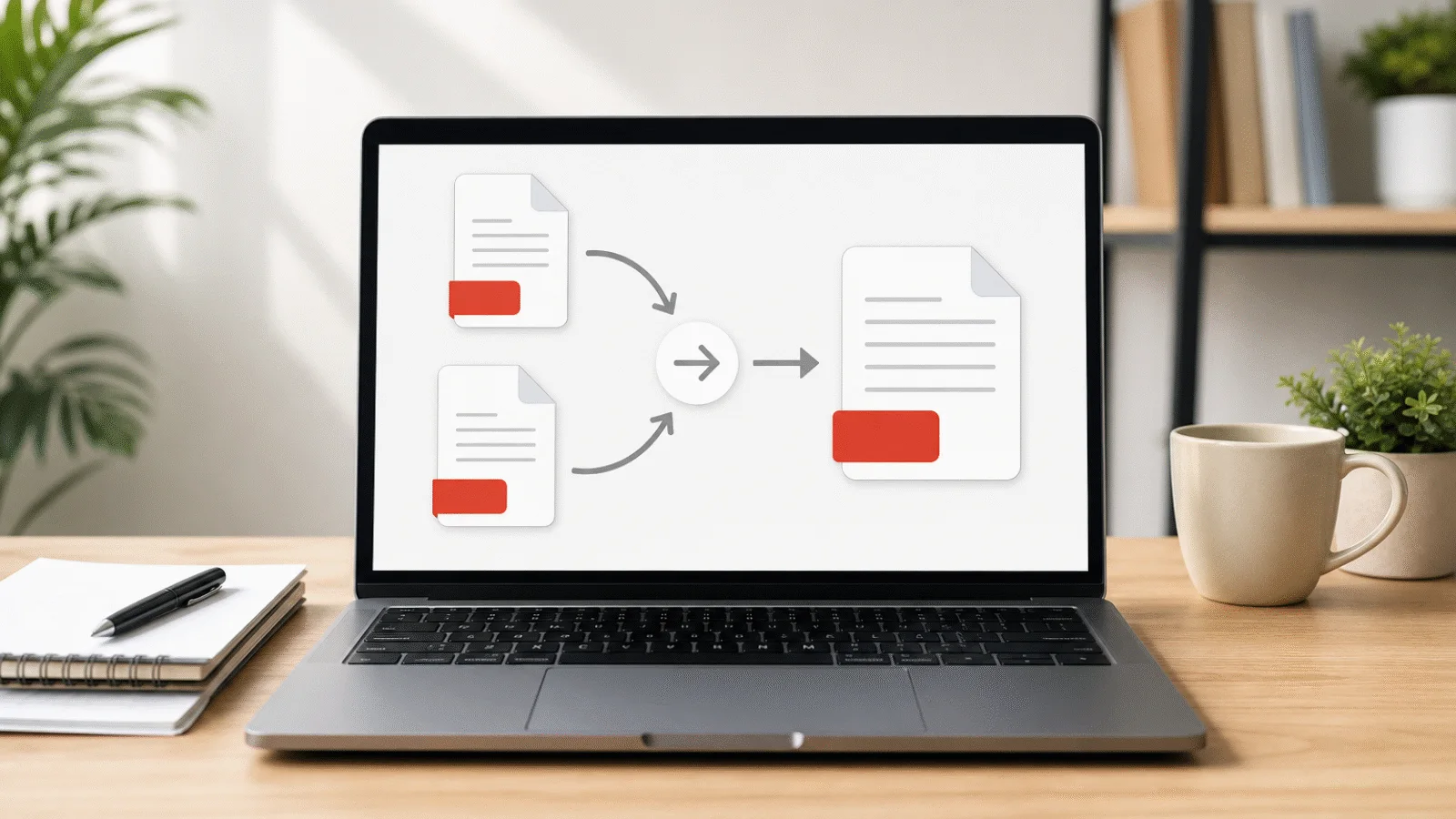
Photographed a document but the form accepts PDF only? Learn how to convert a photo in your browser, handle iPhone images and combine several photographed pages into one file.
Taking a phone photo is now one of the most common ways to bring a paper document into a computer. A signed contract, receipt or form is captured in seconds, but many portals accept PDF rather than an image. A PDF also keeps several pages together in the correct order and is easier for the recipient to print.
This guide shows you how to convert photographs on iPhone and Android, combine several pages and keep the document readable. Processing happens locally in your browser and no photographs are uploaded.
How to convert a photo to PDF in your browser
For a JPG photograph, open JPG to PDF. Choose one or more files, arrange them in page order and create the document. Each photo becomes one PDF page. A JPG image is embedded without recompression, so its original pixel data is preserved; the page is sized to match its proportions.
The tool reopens the result, checks its page count and dimensions and verifies the embedded image data before offering the download. The source photographs remain unchanged.
Free tool, right in your browser
JPG to PDF
Choose your JPG photos, arrange them and download one PDF. The images are embedded without re-encoding and are never uploaded.
iPhone photos: HEIC and orientation
Newer iPhones commonly save photos as HEIC rather than JPG. Use HEIC to PDF, which decodes HEIC with libheif directly in the browser before placing the image on a PDF page. Decoding honours the available colour and orientation information, although it creates new image data rather than embedding the HEIC file itself.
If a finished page is sideways or upside down, correct the PDF with Rotate PDF. Rotation changes the page orientation without resampling its image.
Free tool, right in your browser
HEIC to PDF
Convert HEIC photos from an iPhone to PDF directly in your browser, with no installation or file upload.
Photos from Android
Most Android phones save camera images as JPG, so JPG to PDF is usually the direct route. Some models can use HEIC when a high-efficiency setting is enabled; in that case choose HEIC to PDF. Check the extension in the Files or Gallery app if you are unsure.
Screenshots may be PNG. Convert those with PNG to PDF. Transparent areas are flattened onto white because a paper-like PDF page cannot preserve transparency in the same way.
How to photograph a readable document
Place the sheet on a flat surface in even light. Hold the phone parallel to the page so its edges do not converge, fill the frame without cutting off corners and avoid a shadow from your hand or phone. Tap on the text to focus before taking the picture.
For several pages, keep the phone at the same height and orientation. A document mode in the camera or Files app can crop the sheet and correct perspective automatically. Check small print, signatures and stamps before discarding the paper originals.
Several photos in one PDF and the page order
Select all images at once or add them in batches. The image higher in the list becomes the earlier page. Move files until the order matches the paper document, then create the PDF.
If you discover an error later, use Organize PDF Pages to rearrange pages or Delete PDF Pages to remove a duplicate. To append another PDF, use Merge PDF.
When the PDF must fit under a size limit
High-resolution phone photographs produce large documents. If the portal specifies a ceiling, use a target-specific JPG tool such as JPG to PDF under 2 MB. It reduces the images while building the PDF and reports whether the target was met.
For an existing PDF, use Compress PDF. Image reduction can soften fine details, so inspect signatures, stamps and small text. A target is a maximum, not a guaranteed outcome; if it cannot be reached safely, the tool offers the smallest verified result.
Without our tool: what your phone can do
On an iPhone, Notes and Files can scan pages and save a PDF. On Android, the available route depends on the phone and installed apps; Google Drive and some camera apps include document scanning. These options can crop and correct perspective before saving.
A browser conversion is useful when the photographs already exist, when you want explicit control over their order or when you do not want to install another app. In either case, inspect every page before submitting the document.
Frequently asked questions
How can I put a photo into a PDF for free?
Open JPG to PDF, choose the photograph and create the file. The tool is free, requires no registration, adds no watermark and runs in your browser without uploading the image.
How do I make a PDF from a photo on an iPhone?
If the photo is HEIC, use HEIC to PDF; if it is JPG, use JPG to PDF. Select several images together to create a multi-page document, then download the checked result.
Will the photo quality remain the same?
JPG files are embedded without recompression, so their pixels remain unchanged. HEIC, PNG and other formats must be decoded in the browser and represented in a PDF-compatible form. They retain their dimensions, but conversion is not a byte-for-byte copy.
How do I put several photos into one PDF?
Choose all of them in Images to PDF or the format-specific tool, arrange the list and start conversion. Every image becomes one page in that order.
Why is a PDF made from photos so large?
Phone photos contain millions of pixels, and one is embedded for every page. Reduce them with a target-specific JPG to PDF tool or compress the completed document. Always inspect small text after lossy reduction.
Are my photos uploaded anywhere?
No. They are decoded and assembled into the PDF in your browser tab. Neither the source images nor the result is sent to a server.