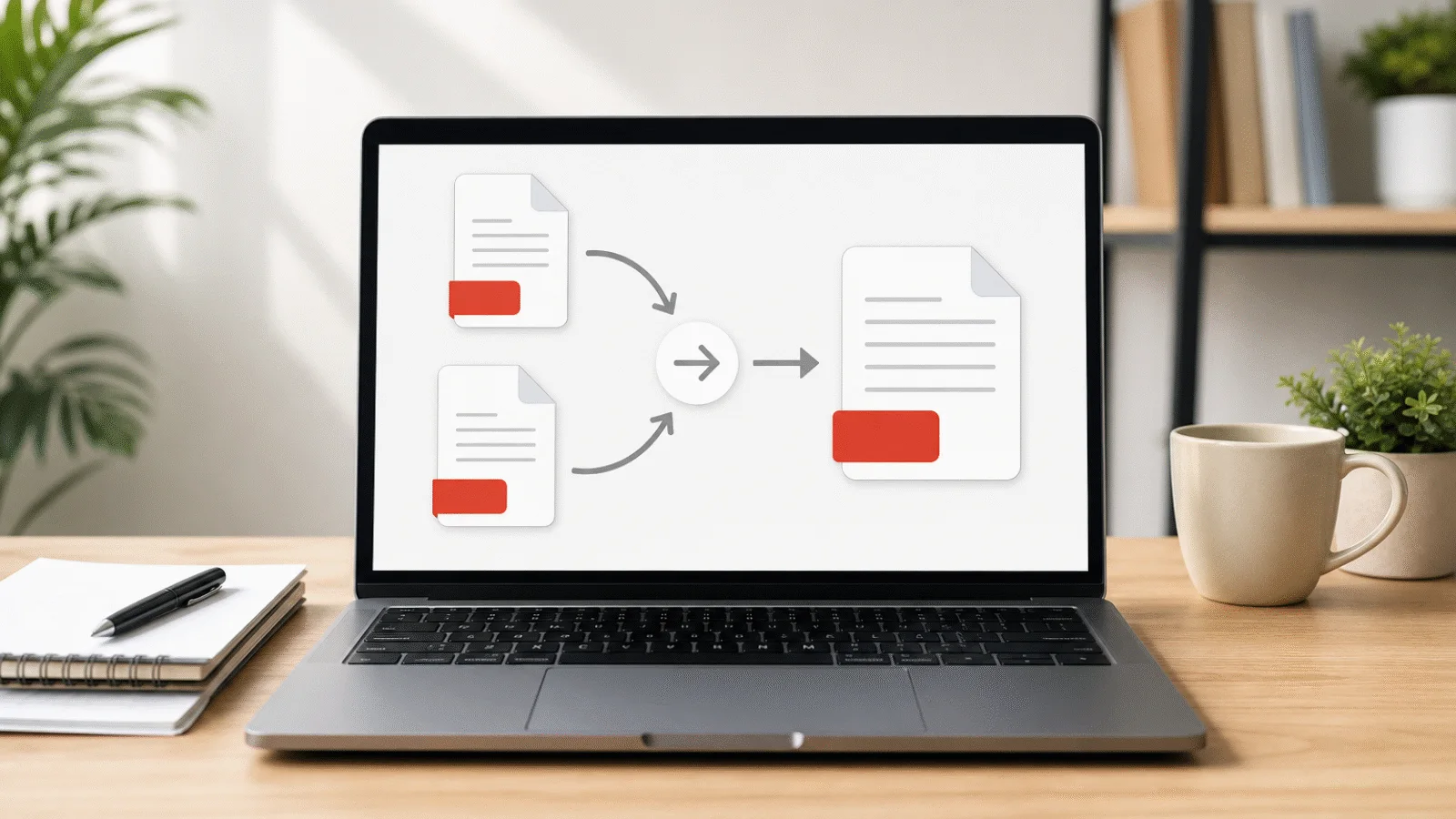
A document opens sideways and the browser's rotate button does not fix the file. Learn how to save rotation in the PDF, rotate one page and see what remains unchanged.
A PDF that opens sideways or upside down is usually a scan or photograph saved with the wrong orientation. The rotate button in a browser may straighten the page on screen, but it does not repair the file itself.
This guide explains why browser rotation is not saved, how to write the correct orientation into the file, how to rotate one page and what the process preserves. The file stays on your device because everything runs in the browser tab.
Why browser rotation is not saved
The rotate button in a browser or ordinary PDF reader changes only how the document is displayed. The adjustment lasts while the file remains open. Once you close it, the change disappears.
Every page stores its own rotation in the document. Unless that value changes, recipients will also see the page sideways. A document may look correct on your screen only because you rotated its view earlier; the file you send still contains the original orientation.
How to rotate and permanently save a PDF in your browser
Open Rotate PDF and follow four steps.
- Choose the PDF. Click Choose PDF or drag the file onto the page. It loads only in your browser and previews of all pages appear.
- Rotate the pages. Each preview has Rotate Left and Rotate Right buttons. Use All Left or All Right to turn the whole document. Reset All cancels every change.
- Press Save Rotation. The button becomes active after at least one page has changed, and the new orientation is written to each selected page.
- Check and download. The result is reopened and the angle and text of every page are compared with the expected values. Only then is it offered for download. The result is saved with a -rotated suffix.
Free tool, right in your browser
Rotate PDF
Rotate selected pages or the whole document and save the PDF in the correct orientation. The rotation is stored in the file, and nothing is uploaded.
How to rotate only one page in a PDF
You do not have to rotate the entire document. Each preview has separate arrows, so you can turn a landscape table in the middle while leaving all other pages unchanged. A status line shows how many pages you changed, but not which ones, so inspect the previews before saving.
You can choose a different direction for every page. If one scan is turned left and another right, correct each with the opposite arrow. If the pages also need a different order, open the result in Organize PDF Pages and move them individually.
Free tool, right in your browser
Organize PDF pages
Use the arrow buttons to rearrange the pages, then download the PDF in its new order. Text and fonts remain unchanged.
Rotation by 90, 180 or 270 degrees
One click rotates a page by 90 degrees. Two clicks in the same direction make 180 degrees and correct an upside-down page. Three clicks right or one click left produce a 270-degree clockwise turn.
PDF stores rotation as 0, 90, 180 or 270 degrees. The tool cannot enter smaller angles, straighten a slightly skewed scan or mirror a page. If text still reads backwards after rotation, the page was mirrored during scanning or conversion and needs an image editor.
What rotation preserves
Page content is untouched. Only the page's rotation property changes; text, images, vector graphics and fonts are neither redrawn nor resampled.
- Text remains searchable. Searching, selecting and copying work as before.
- Quality does not change. A scan looks identical because its image is not saved again.
- File size barely changes. The same document is rewritten with new rotation values and no images are resampled.
Before download, the tool reopens the result and checks the rotation and text of every page. If anything does not match, it does not offer the file.
Rotated scans and their text
A scanned page is an image. Rotating the page turns that image with it, so the scan opens correctly in standards-compliant PDF readers. Check print preview, however, because the print dialog can rotate it again.
The same applies to a sheet photographed on a phone and saved as PDF. Rotation corrects the finished PDF page rather than relying on camera metadata. If OCR previously added a text layer, it turns with the page and remains searchable. The rotation tool itself performs no OCR, so an image-only scan stays unsearchable.
Rotating a password-protected PDF
The tool rejects encrypted files, including PDFs that open without a password but restrict printing or copying. Remove the protection first with Unlock PDF. Rotate the unlocked copy normally and, if the result must remain protected, secure it afterwards with Password Protect PDF.
Frequently asked questions
How do I rotate and save a PDF?
Open it in Rotate PDF, use the arrows beside the page previews and press Save Rotation. The angle is written directly into the page properties, so it remains after you close the document or send it to someone else.
Can I rotate a PDF for free without installing software?
Yes. Rotation runs in your browser, requires no account, adds no watermark and has no usage limit. It works in a supported browser on Windows, Mac and mobile devices.
Will the PDF also rotate in Adobe Reader and on mobile?
Yes. Page rotation is a standard PDF property respected by ordinary readers, browsers and mobile apps. Check print preview because a print dialog may independently rotate the page.
Will rotating make the file larger?
Hardly at all. Only one number changes for each rotated page. Content is not copied or resampled, so the result is usually about the same size as the source. Rotating a scan does not compress it.
How do I rotate an upside-down scanned document?
Click the same arrow twice for a 180-degree turn. If the whole document is upside down, press All Left or All Right twice, then save the rotation.