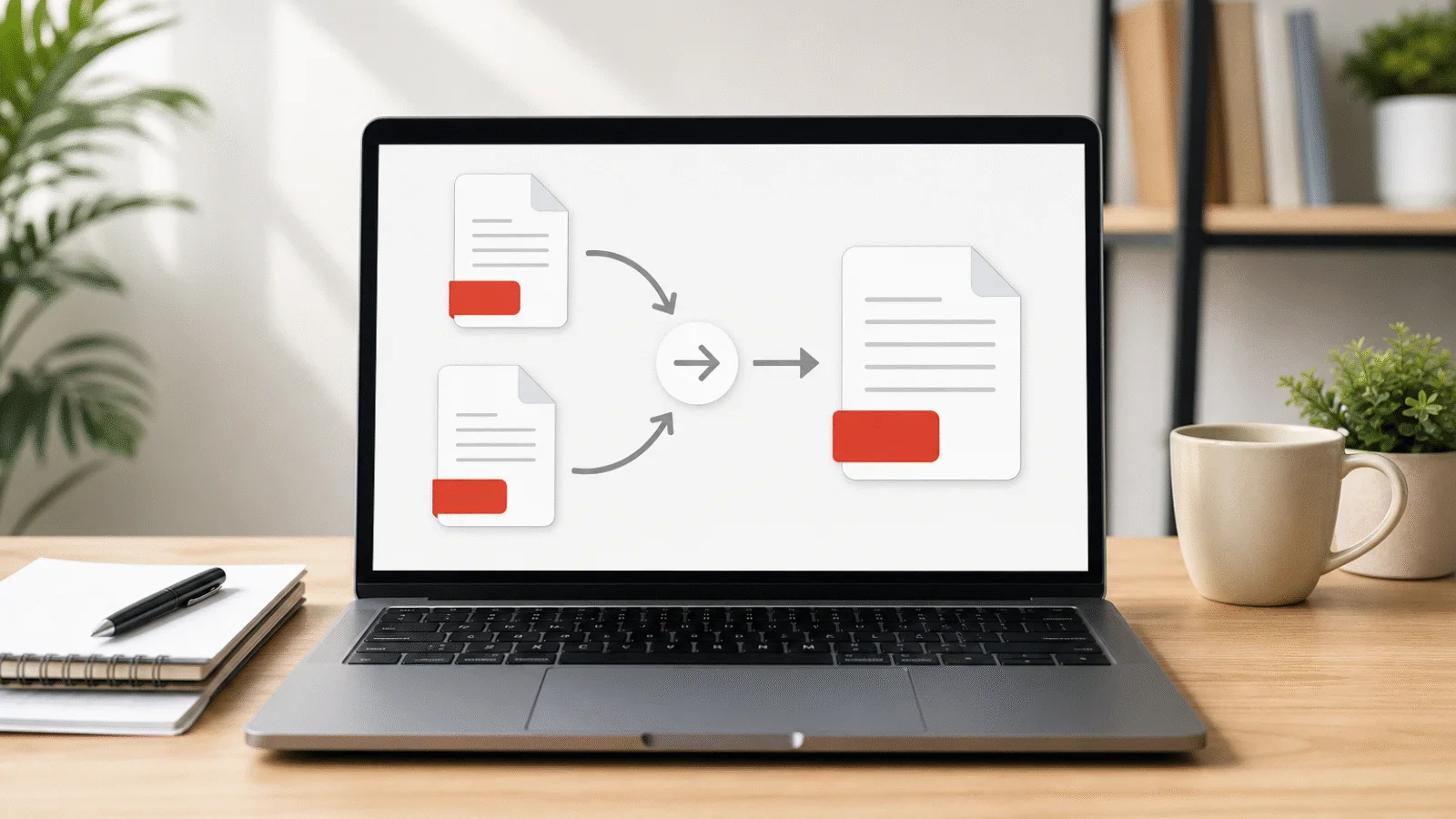
Need to send one confirmation, invoice or attachment from a long PDF? Learn how to select one or more pages, choose the right output and check the result.
You can save one page from a PDF as a separate file without changing the original document or touching its other pages. This is useful when only one page of a statement contains the required confirmation, a complete case-file scan includes one attachment you need, or a monthly export contains invoices that must be sent separately.
In this guide, you will learn how to select one page or a larger set, when to save the selection as one PDF and when to choose separate files, and how extracting pages differs from splitting or deleting them.
How to save one PDF page as a separate file
Open Extract PDF pages and follow these steps:
- Choose the PDF. Select it from your device or drag it into the drop area. The browser loads the document and displays a numbered preview of every page.
- Select the page you need. Tick the box beside its preview. You do not have to type a page number, so you can check the visible content before making the choice.
- Choose One PDF. When only one page is selected, the result is a one-page document. Separate PDFs in a ZIP is more useful when several selected pages each need their own file.
- Extract and download. The tool verifies the page count, dimensions and selectable text before making the result available.
The original PDF on your device remains untouched. The selected page is read into the browser and copied to a new document in memory. If you picked the wrong page, load the original again and repeat the selection.
Free tool, right in your browser
Extract PDF pages
Select the pages you need and download them as a new PDF or as separate files in a ZIP archive. Nothing is uploaded.
How to extract a range or several non-adjacent pages
Tick every page that should remain. For a chapter running from pages 5 to 9, select all five previews. You can just as easily choose non-adjacent pages such as 2, 7 and 12.
The One PDF option combines every selected page into a single document. Their order always follows the source PDF, regardless of the order in which you ticked the boxes. If you select page 12 first and page 2 afterwards, page 2 still appears first in the result.
When you need a custom sequence, save the selection and open it in Organize PDF pages. Move each page forward or backward one position at a time until the order is correct. You can restore the initial order if you lose track while rearranging.
Separate PDFs in a ZIP creates a one-page PDF for every selected page and collects them in one archive. Each filename includes the original document name, the output sequence and the source page number. After extracting the ZIP, it remains clear where every file came from.
Choose the output for the next task. A single PDF is convenient for a chapter or a group of pages that should be read together. Separate files suit invoices, certificates and confirmations that go to different recipients. The ZIP is only a container for downloading them together; inside it are ordinary PDF files that you can rename and send individually.
Extract, split or delete: which tool do you need?
The three operations sound similar, but they answer different questions:
- Keep only a small selection. Use Extract PDF pages. The selected pages remain and everything else is left out of the new file. This is the quickest way to isolate a signed page, short appendix or chapter from a long document.
- Keep the whole document but divide it into parts. Use Split PDF. Mark the pages where new files should begin, and every source page ends up in exactly one part. How to split a PDF explains the complete workflow.
- Remove a few unwanted pages and keep the rest. Use Delete PDF pages. Here you mark what should disappear. The guide How to delete a page from a PDF also covers blank pages.
Think about which pages are easier to mark. When you need three pages from a hundred-page report, selecting those three for extraction is faster. When only two pages should be removed from the same report, mark those two for deletion instead.
Free tool, right in your browser
Split PDF
Mark the pages where each new file should begin, then send only the part the portal actually requires.
What the extracted PDF contains
Extraction does not turn pages into images. Their content is copied together with the fonts and images those pages use. Text that could be selected, searched and copied in the original remains selectable in the result.
A scanned page behaves exactly as it did before. If the scan already had a text layer, it is preserved. If it was only a picture of paper, extraction does not perform optical character recognition and cannot create searchable text.
A short selection is often much smaller than the complete document because the new PDF contains only the fonts and images required by the selected pages. There is no guaranteed size, however. One page containing a high-resolution photograph can be larger than dozens of ordinary text pages.
Numbers printed in a header or footer do not change. If source page 17 becomes the first page of the new document, a reader will label it as page 1 while the visible paper may still say 17. That number is part of the page content, not a label the extraction tool can rewrite.
Bookmarks and interactive form fields are not transferred because they belong to the document as a whole. The original title and author metadata are not written to the result either. If you extract a page from a completed form, open the new PDF and make sure every value you need is visibly present.
Check the selected pages before sending them
The tool reopens each created PDF before download. It verifies the number of selected pages, their dimensions and their selectable text. When you choose separate files, the same check runs for every PDF placed in the ZIP.
Automated checks cannot judge whether you picked the correct invoice or whether a signature is the one your recipient expects. Open the download and inspect signatures, stamps, invoice numbers and the pages around the boundaries of a selected section. When sharing one page from a personal statement, also look for information the recipient does not need.
An encrypted PDF is rejected, even if it opens without a password and only restricts printing or copying. Create an unencrypted copy with Unlock PDF first. If the file asks for an opening password, you must know it. The tool does not guess or crack passwords.
Extraction runs entirely on your device. The PDF is not uploaded, which makes the workflow suitable for contracts, statements and other sensitive files. The only new copy is the result you choose to download.
Frequently asked questions
How can I save one PDF page for free?
Open Extract PDF pages, choose the file, tick one page beside its preview and select One PDF. You receive a one-page document without registration or a watermark. The browser performs the extraction locally on your device.
Can I extract a page from a password-protected PDF?
Not while the file is encrypted. Use Unlock PDF first. You must enter an opening password if the document requires one, while printing and copying restrictions can be removed without typing a password when the file already opens normally.
Will the text remain searchable?
Yes, provided it was searchable in the original. The page and its fonts are copied rather than rendered as an image. Extraction cannot add text to a scan that never had a text layer because it does not use OCR.
Can I select pages without installing software?
Yes. The previews, selection and export all run in a current browser. You can download the result as one PDF or as separate PDFs in a ZIP archive. The source document never leaves your device.
How many pages can I select?
There is no fixed page-count limit. File size and the memory available to your browser are the practical constraints. A very large scan may be easier to handle in smaller parts or on a computer with more memory.
How do I extract one PDF page on a phone?
Open Extract PDF pages in your mobile browser, choose the document from the phone, tick the required preview and download the result. Zoom in on previews when working with a long document so similarly looking pages are not confused.