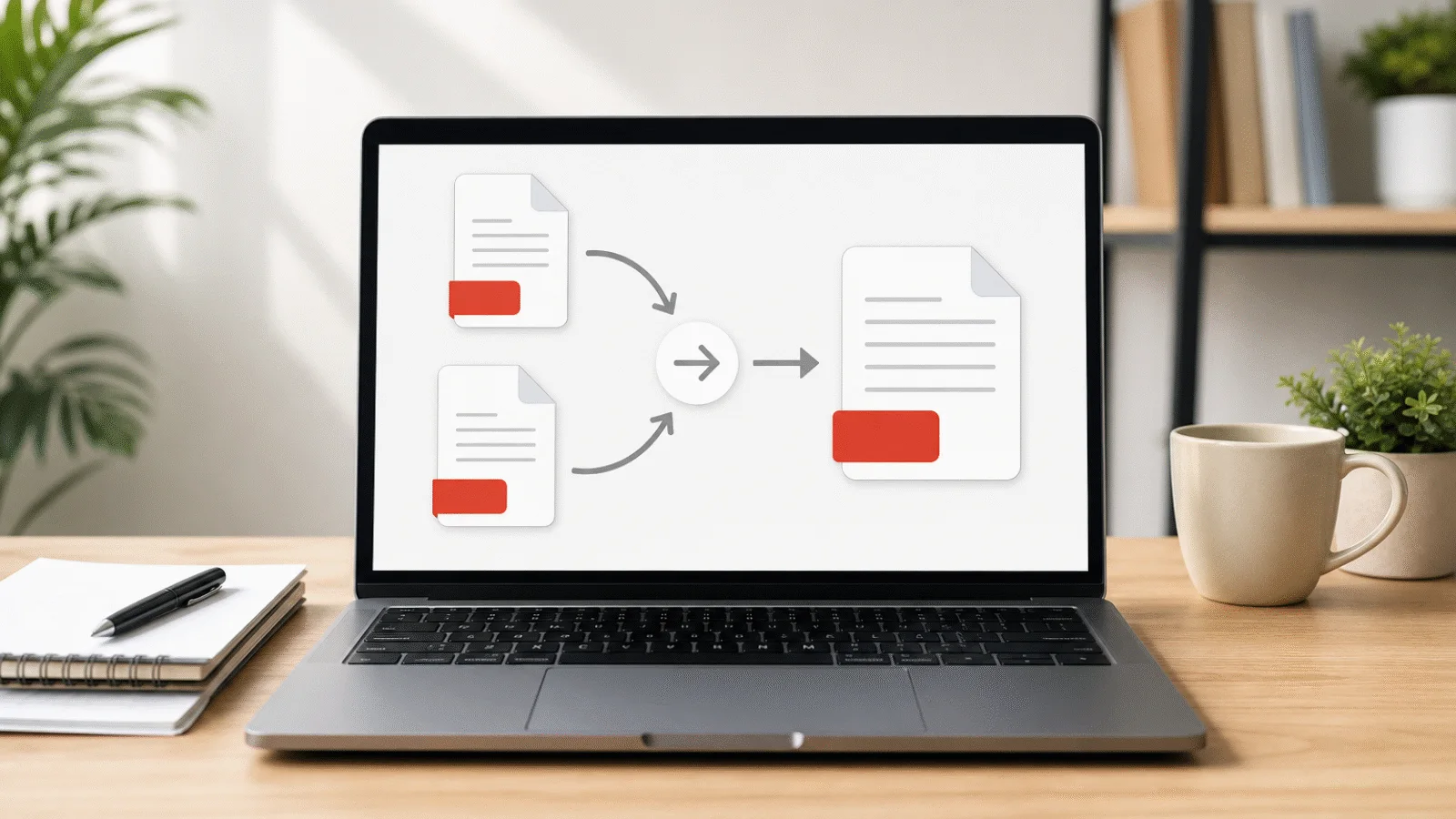
Does your PDF contain a cover sheet, an old table or blank backs from a scan? Learn how to remove pages in your browser, find blank ones and understand what changes.
Deleting a page is one of the most common PDF edits, yet most basic readers cannot do it. A portal may not want the cover sheet, an export may include an obsolete table, duplex scanning may create blank backs, or a case file may contain somebody else's details.
This guide shows how to remove one or several pages, detect blank scan pages and verify the result. Processing runs in the browser and the document is not uploaded.
How to delete a page from a PDF in your browser
Open Delete PDF Pages and follow four steps.
- Choose the PDF. Page previews appear after the file loads.
- Select pages to remove. Tick the pages that should disappear. The counter shows how many are selected and how many will remain.
- Press Delete Pages. At least one page must remain; the tool will not create an empty PDF.
- Check and download. The result is reopened and its page count, dimensions and retained text are compared with the expected pages before download.
The original file is not changed. The new copy is saved with a -pages-removed suffix.
Free tool, right in your browser
Delete PDF pages
Select the pages you want to remove and download the document without them. Text and fonts remain unchanged, and nothing is uploaded.
How to remove blank pages from a scan
For a duplex scan, open Remove Blank Pages from PDF. It marks likely blank pages automatically. A candidate has no selectable text and a preview that is almost entirely white.
This is a suggestion, not an irreversible decision. A faint stamp, pencil note or pale scan may look blank to the detector, so inspect every marked preview and clear any page you need. Conversely, manually select an unmarked blank page. Then remove the confirmed selection.
Free tool, right in your browser
Remove blank pages from PDF
The tool automatically finds and selects blank pages in a scan. Check the selection and download the PDF without them.
Delete one page, several pages or everything except a few
For one page, tick its preview. For several, select each one; they need not be consecutive. To keep only a small number of pages, Extract PDF Pages is quicker because you select what stays rather than what disappears.
If you need separate files rather than deletion, use Split PDF. It distributes every source page among parts, whereas deletion permanently omits the selected pages from the new copy.
What is and is not preserved
The remaining pages keep their text, fonts, images, vector graphics, dimensions and rotation. Nothing is rendered or recompressed, so searchable text remains searchable and image quality does not change.
Document-level elements may not transfer: bookmarks, embedded attachments, functional form fields, digital signatures and Info metadata such as title and author. A signature cannot remain valid because deleting a page creates different file bytes. Open important forms and signed material after processing.
The automatic check verifies page count, dimensions and text, but it does not judge appearance. Inspect crucial signatures, stamps and tables yourself.
Deleting pages from a password-protected PDF
Encrypted files are rejected, including those that open without a password but restrict printing or copying. First create an unencrypted copy with Unlock PDF. Delete pages from that copy and, if needed, protect the result again with Password Protect PDF.
If the PDF is still large after pages are removed
Deleting pages does not recompress the content that remains. Shared fonts and images may also continue to occupy space. If the finished file exceeds a portal or email limit, use Compress PDF on it afterwards so the size target applies to exactly the document you will send.
Frequently asked questions
How can I delete a PDF page for free?
Open Delete PDF Pages, choose the file, select the unwanted preview and remove it. The tool is free, requires no registration, adds no watermark and processes the file locally.
How do I delete a blank PDF page?
Use Remove Blank Pages from PDF to have likely blank pages marked automatically. Review the suggestions, correct the selection and start deletion. Pale content can be missed, so never skip the preview check.
Can Adobe Reader delete a PDF page?
The free Reader does not provide page deletion. Paid Acrobat does. The browser tool offers the focused operation without installation.
Will the text remain searchable?
Yes. Kept pages are copied with their text and fonts and are not turned into images. An image-only scan remains image-only because deletion performs no OCR.
Can I restore a deleted page?
The source PDF stays unchanged, so you can repeat the operation with a different selection. The downloaded copy itself does not contain the removed page.
Is the PDF uploaded anywhere?
No. The source is loaded into the browser tab, the new file is created on your device and nothing is sent to a server.