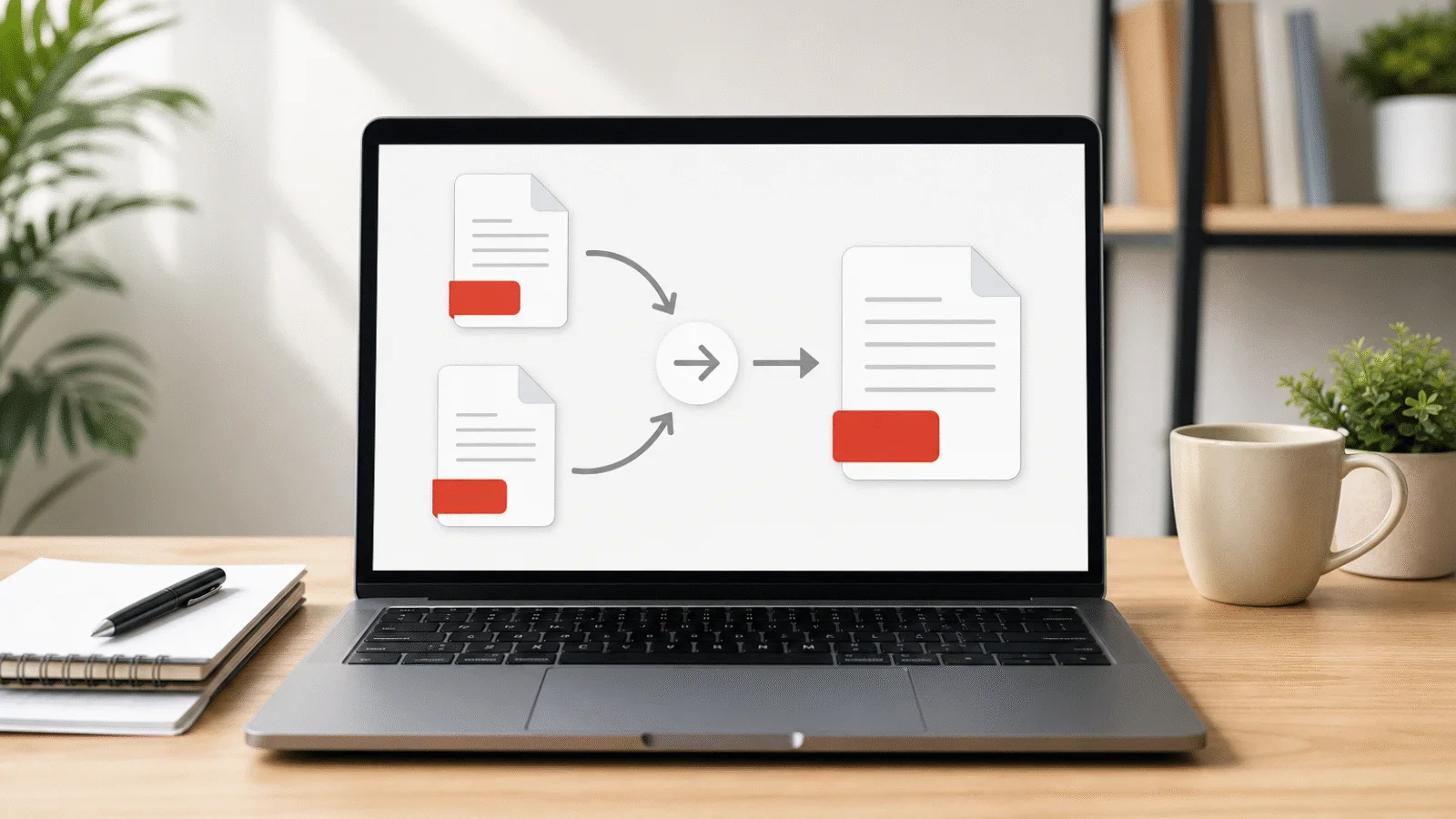
Need to attach a photographed form, a missing page or a cover to an existing PDF? Learn how to turn the image into a page, merge the files and place it correctly.
Adding a page to a PDF often starts with two different kinds of material. You might have a signed contract as a PDF and its attachment as a phone photo, a report that is missing one separately saved page, or a document that needs a new cover sheet.
In this guide, you will learn how to turn an image into a PDF page, join it to the existing document and move it into the right position. Each step runs in your browser, and none of the files are uploaded to a server.
Adding a page means building a new PDF from parts
A browser tool does not push a new page into the middle of the original file. Instead, you build a new PDF from the parts you already have. The exact workflow depends on the format of the page you are adding:
- If it is a photo or scan, convert the image to PDF.
- Merge that new PDF with the existing document.
- Rearrange the pages if the addition belongs somewhere other than the beginning or end.
The downloaded result from one step becomes the input to the next. Keep the original files until you have opened and checked the finished document. This makes it easy to repeat a step if a page is upside down, in the wrong position or sized differently from the rest.
If the extra page is already a PDF, skip the image conversion and begin with merging. If several images make up one attachment, arrange all of them during the first step so they enter the document in the correct order.
How to turn an image into a PDF page
Open Images to PDF and add the photographs or scans. It accepts JPG, PNG, HEIC, WebP, TIFF and BMP files, so an iPhone photo does not have to be converted separately before you begin.
Choose one of three page-size approaches:
- Fit the page to the image when you want to preserve the picture's original proportions without adding a standard paper size around it.
- A4 is a practical match for most European documents and forms.
- US Letter fits paperwork prepared for that page size.
You can also choose no margins, narrow margins or standard margins. No margins make the image fill as much of the page as its proportions allow. Margins create a white border and help keep photographed content away from the printable edge.
For A4 and US Letter, the page automatically turns to landscape when the image is wider than it is tall. Orientation stored in the photo's EXIF data is applied as well, so a phone photo should not end up sideways merely because its raw pixels were stored in another direction.
JPG files are embedded without re-encoding, preserving their existing image data. Other formats are decoded in the browser and written into the PDF without intentionally lowering their quality. HEIC images are decoded locally too. Arrange the thumbnails, create the PDF and open the downloaded result to check its orientation and margins.
Free tool, right in your browser
Images to PDF
Create one PDF from JPG, PNG, HEIC, WebP, TIFF or BMP photos and scans in the order you choose. Nothing is uploaded.
How to attach the new page to the document
Open Merge PDF, add the existing document and the PDF created from your image, then put the files in the required order. All pages from the first file appear first, followed by all pages from the second file and so on. The arrow controls let you move complete files before starting.
At least two PDFs are required, but the tool does not impose a fixed upper number. What the browser can handle depends on file size, content and the memory available on the device.
Each copied page keeps its dimensions and rotation. A photo-sized page can therefore sit next to A4 pages without being stretched. That is valid PDF, although the change in proportions will be noticeable while reading or printing. If consistent paper size matters, choose A4 or US Letter during the image conversion rather than fitting the page to the photograph.
Encrypted PDFs are rejected. If a document requests a password when opened, you must know it and create an unencrypted copy with Unlock PDF. A PDF that opens normally but restricts printing or copying must also be unlocked before it can be merged.
How to place the added page in the middle
Merging controls the order of whole files, not the individual pages inside them. If the new page belongs between pages 4 and 5 of a report, merge the files first and open the result in Organize PDF pages.
Every thumbnail has controls for moving that page one position forward or backward. Repeat the move until the added page reaches the right place, then save the order. If the arrangement becomes confusing, restore the original order and try again.
Free tool, right in your browser
Merge PDF
Choose your PDF files, put them in order and download one document. Everything happens in your browser, and nothing is uploaded.
For a very long document, another option is to split it at the insertion point and merge three files in this order: the first part, the new page and the second part. Organizing thumbnails is simpler when only one or two pages need to move, while splitting can be quicker when a new section belongs deep inside a large file.
What carries over when you combine the files?
Page content is copied with its text, fonts, images and vector graphics. The dimensions and rotation of every page remain as they were. Printed page numbers also remain visible because they are part of the page content.
Document-level features do not necessarily carry over into the newly built file. Bookmarks, interactive form fields, custom page labels, digital signatures, embedded attachments and named link destinations are not preserved. Values already visible in a form may remain on the page, but the fields themselves stop being interactive.
Printed numbering can become misleading after an insertion. If the original footer says 5 on what is now the sixth page, the tool does not rewrite it. Correct such numbering in the original editable document when possible, then export the PDF again.
The merge and page tools reopen their output and verify page counts, order, dimensions and readable text before offering the download. Even so, inspect the finished document yourself. Check the inserted page, the pages immediately before and after it, and any form values or links you rely on.
When replacing a page is the better workflow
If a corrected page should take the place of an old one, do not simply add it. First use Delete PDF pages to remove the outdated page. Then merge the corrected page with the remaining document and move it into position.
When the original Word or other source document is available, editing that source is usually cleaner. Insert the missing page or image there and export a new PDF. This preserves headings, page numbering, bookmarks and other document structure that a page-level merge cannot reconstruct.
A certified digital signature is tied to the exact bytes of a PDF. Adding, removing or rearranging pages creates a new file and invalidates that signature. Keep a signed original unchanged. If the content genuinely needs to be revised, prepare the complete corrected document and have it signed again.
Frequently asked questions
How do I insert one PDF into another PDF?
Add both files to Merge PDF and place them in the desired order. To insert one file in the middle of another, merge them and move its pages with Organize PDF pages, or split the main document at the insertion point and merge the three parts.
How do I add a photo as a new PDF page?
Convert the photo with Images to PDF, choosing the page size and margins you need. Download the resulting PDF, then merge it with the existing document. The source photograph and the original PDF remain unchanged on your device.
Can I insert a page in the middle of a PDF?
Yes. Merge the original and the new page, then use Organize PDF pages to move the addition into place. For a large document, splitting at the insertion point and merging the first part, new page and second part can be faster.
Will adding an image reduce its quality?
A JPG is embedded without re-encoding, so its existing image data is preserved. Other supported formats are decoded and written into the PDF without deliberate quality reduction. The result cannot contain more detail than the source image, so start with the clearest available scan or photograph.
Are the documents uploaded anywhere?
No. Image conversion, PDF merging and page reordering all take place in the browser on your device. The files are not sent to a processing server. Only the new results you choose to download are created.
Can I add a page to a PDF on my phone?
Yes. The same tools work in a current mobile browser. Choose the photo or document from your phone, complete each step and download the intermediate result. Large scans may be easier on a computer because a phone browser has less available memory.