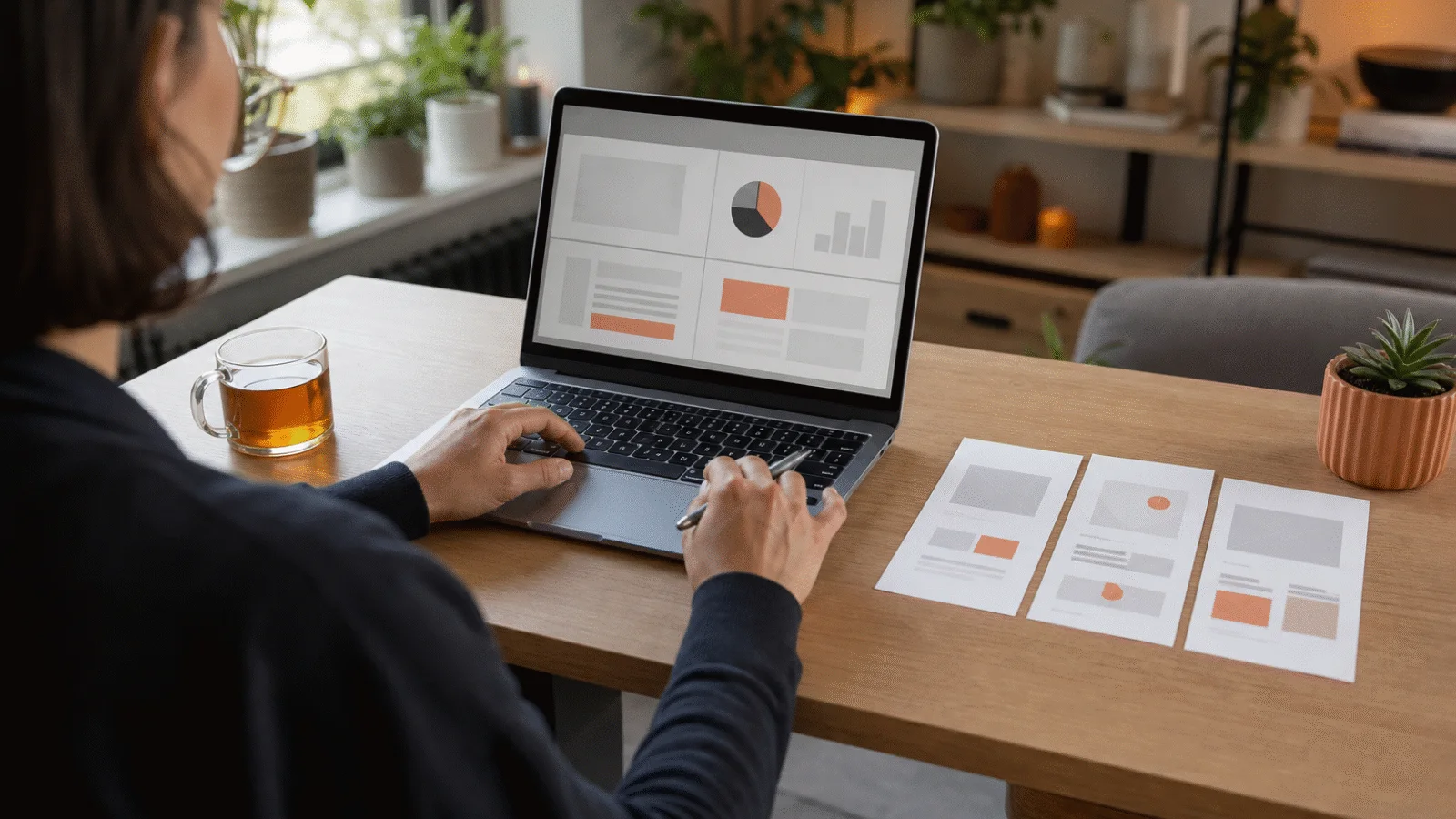
How can you make a presentation with AI for free? Compare the tools, copy a practical prompt and turn the first draft into slides you can actually use.
You can make an AI presentation for free with tools such as Canva, Gamma and Prezi. They can suggest an outline, draft the copy and design the slides. Treat the result as a first draft, though, not a finished presentation. AI does not know your audience as well as you do, and it can produce vague or inaccurate claims.
The quickest workflow is straightforward: define the goal, generate an outline, cut down the copy and only then work on the design. This keeps you from polishing a slide that you later decide to remove.
Which AI presentation tool should you choose?
Start with the format you need to deliver. A school presentation submitted as a PDF has different requirements from a PowerPoint deck that several colleagues will edit later.
| Tool | Best for | Free option | Watch out for |
|---|---|---|---|
| Canva | school presentations, simple pitch decks, polished templates | you can start without paying | some AI features, templates and graphics are premium |
| Gamma | a fast draft from a prompt, online presentations | the free plan supports smaller presentations and export | custom branding and advanced features require a paid plan |
| Prezi AI | dynamic talks, topic maps and less conventional transitions | AI features can be tested with free credits | too much movement can distract from a straightforward topic |
| PowerPoint with Copilot | workplace decks and further editing in PowerPoint | only an option if you already have an eligible licence | Copilot is not included with the free version of PowerPoint |
Free-plan terms change. Before you begin, check the available AI credits, .pptx or PDF export and any branding added to the result. If someone else needs to edit the deck, test the export before building the whole presentation.
What to prepare before generating slides
A prompt such as “Create a presentation about artificial intelligence” is too broad. It tends to produce pleasant-sounding sentences without a clear point. Before you open a tool, write down:
- the topic and purpose of the presentation,
- the audience and what they already know,
- the approximate speaking time,
- the number of slides,
- the intended tone,
- the required delivery format,
- your own facts, figures and sources.
You do not need a finished script. A short brief is enough: “Cybersecurity for small-business owners, 10 minutes, 8 slides, practical tone, goal: teach the audience to recognise phishing emails.”
A prompt you can copy
Ask for an outline first. Do not worry about colours, images or animation at this stage.
Create an outline for a presentation in English about [topic].

Audience: [who will be listening]
Goal: [what they should understand or do]
Length: [number of minutes]
Number of slides: [number]
Tone: [practical, academic, professional or sales-focused]

Start with the outline only. For each slide, provide:
1. a short title,
2. one main idea,
3. no more than three concise points,
4. a suggestion for a simple visual,
5. a speaker note.

Avoid generic filler and do not invent facts.
Ask me a question first if an important detail is missing.
Read the outline as a story. Does the opening make the problem clear? Do the sections follow naturally? Does the ending lead to a useful conclusion or next step? Generate the slides only after the structure works.
How to keep slide copy under control
AI often turns a presentation into an article. Long paragraphs may fill a slide, but the audience will read them instead of listening to you.
Use a second, simple instruction to shorten the draft:
Shorten the copy on the slides. Each slide should communicate one main idea
in no more than three short points. Move the full explanation to the speaker
notes. Remove repetition and empty phrases.
If you are working from an article or document, do not transfer everything into the presentation. Keep only the information your audience needs to understand the main idea. You can quickly check the length of the source material and speaker notes with the word counter.
Quick text check
Count words and characters in seconds
Paste your text and instantly see the number of words, characters and sentences, plus estimated reading time.
What to edit yourself
Spend most of your editing time on the content. A good template cannot rescue a presentation with no specific examples or a confusing sequence.
- Remove slides that only repeat an earlier point.
- Replace broad claims with your own example or a specific figure.
- Keep one main idea on each slide.
- Move longer explanations into the speaker notes.
- Make fonts, colours, icon styles and heading sizes consistent.
- Add the source and time period to every chart.
Use AI-generated images only when they help explain something. A random robot or glowing brain rarely improves a deck. A screenshot works better for instructions, a simple chart for results and a clear diagram for a process.
Final checks before you present
Run the finished presentation from beginning to end and say it aloud at least once. You will quickly notice missing transitions, long passages and slides that add nothing new.
Before you deliver it, check:
- facts, dates, names and figures,
- links to the sources you used,
- spelling and punctuation,
- image and icon licences,
- font rendering after export,
- video playback without an internet connection,
- removal of personal and confidential information.
Do not upload contracts, personal data, financial results or an internal strategy to an online AI service without your organisation's approval. Use anonymised source material for a workplace presentation.
Is a paid plan worth it?
A free plan is usually enough for one school assignment or a simple workplace presentation. Test the quality of the outline and the export before paying. An upgrade makes more sense for regular use, team collaboration, custom branding, unbranded exports or higher limits.
A subscription will not fix a weak brief. A good AI presentation still needs a clear purpose, concise slides, your own examples and careful checking. The tool can save the first half-hour, but the final decisions remain yours.